Mixalert
'Idiot Lights' for Intelligent Operators

Admit it – you screw up all the time. Mixalert offers critical alerts for mixing and editing in Pro Tools.
Designed by real post audio pros after suffering years of painful mixing and editing mistakes, Mixalert warns you whenever those dangerous mixing modes are engaged.
If you’ve ever spent 10 minutes writing the perfect automation pass while in Preview mode you’ll appreciate Mixalert immediately. Ever spent a morning cutting FX with ‘Automation Follows Edit’ turned off? Bounced the reel with a hidden solo?
Mixalert offers a long list of alerts for various dangerous Pro Tools modes and situations, along with safe dismissal of those benign automation-write warnings.
Grab the full-featured 30 day trial and save yourself some pain.

“I just wanted to say how ridiculously good Spanner is. I’m doing a lot of Atmos Music these days and there’s so much stuff that you can’t do any other way!”

“We absolutely love to throw a Spanner into our works and there hasn’t been a mix day since it was born that we haven’t used it. It might just be the most essential tool of our trade”

Unmissable alerts for dangerous Pro Tools modes
Writing a mix pass in Preview is almost impossible with Mixalert throwing full screen flashers at you. Editing with ‘Automation Follows Edit’ is a thing of the past. And you’ll never again run a 10 minute offline bounce with a track accidentally in solo.
Mixalert has a long list of dangerous Pro Tools modes which it can check for and alert about in various ways, saving you time and the embarrassment of admitting you need to “just do that bit again”.
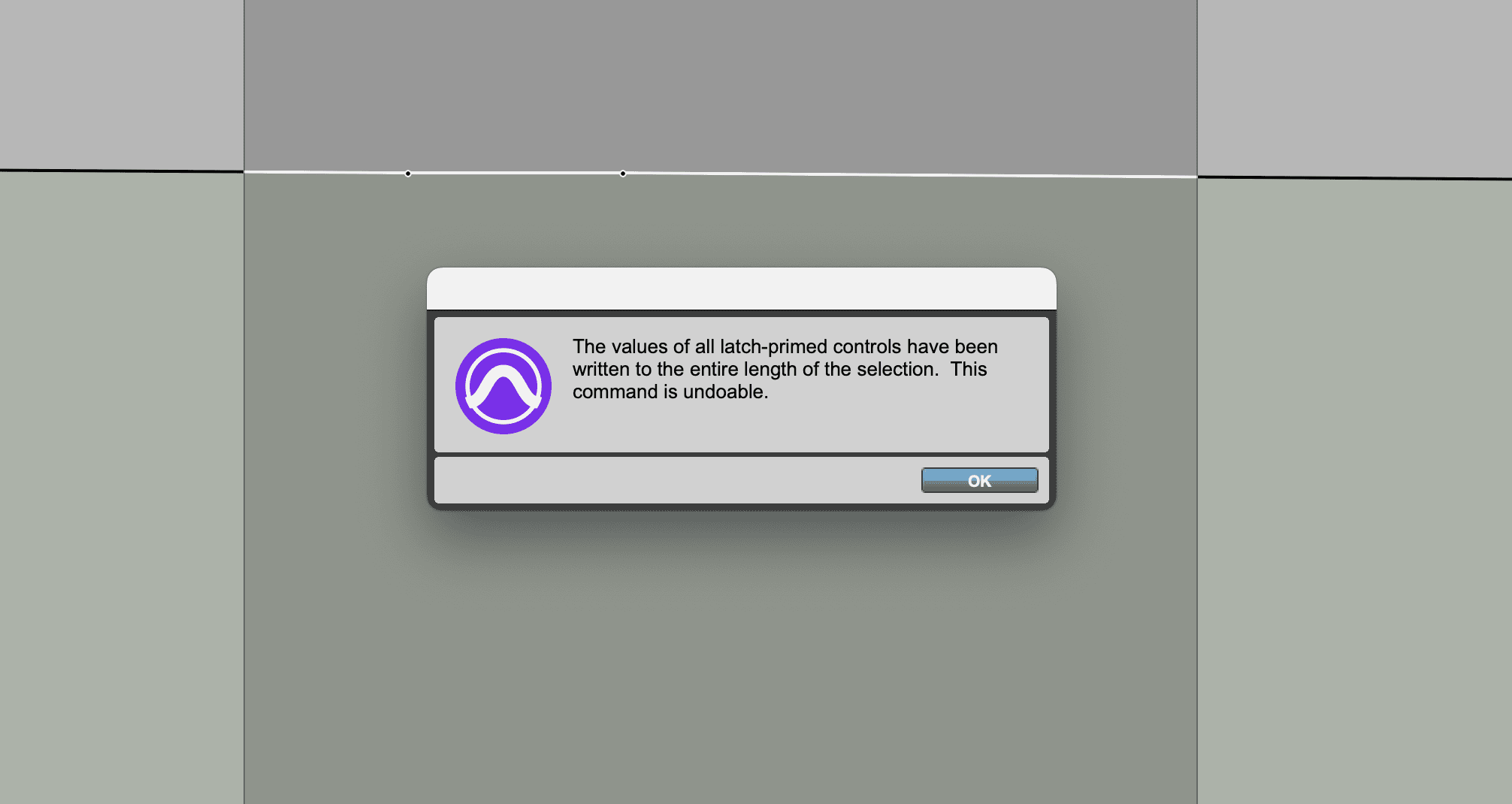
Dismiss "Automation Write To..." warnings
Pro Tools offers some handy automation writing warnings, but some of them are more important than others, and all of them are enabled with a single Pro Tools preference.
Mixalert allows you to enable these warnings, but then automatically dismiss the most benign of them.
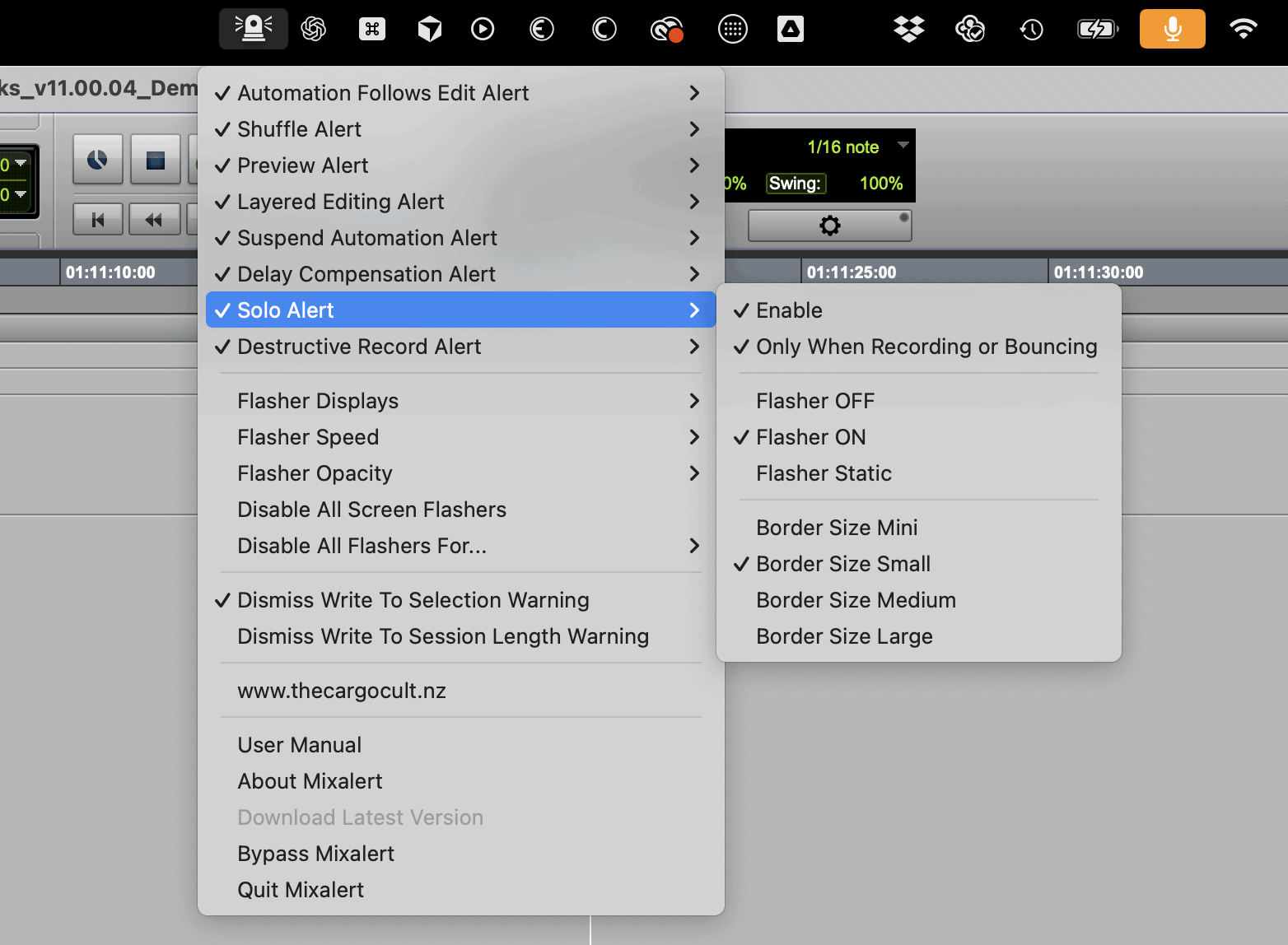
Full control of screen flashers
Mixalert gives you fine grained control over which alert fire, how aggressively, and when. Global opacity and flasher rates can be customised and you can even target specific display monitors.
Set the Layered Editing and Shuffle alerts to massive flashing borders, or the Preview alert to a thin green border, but only when writing automation in playback.
Key features
Automation Follows Edit Alert
Automation Follow Edit is a feature you rarely want to turn off, but there are some very good use-cases. Mixalert will throw the orange alert whenever this setting is in the dangerous state, saving you painful hours or forensic work and recutting entire scenes.
Shuffle Mode Alert
Shuffle mode is great when you’re cutting raw recordings down, but utterly terrifying when you’re working against picture. Mixalert displays a red border whenever shuffle mode is active, giving you an immediate visual warning before you accidentally put one track out of sync for half a reel.
Preview and Suspend Automation Alerts
Preview is one of the most useful and popular mixing features in Pro Tools, but it’s all too easy to forget that it’s enabled and waste valuable time writing the perfect automation pass – mixing into the void. Mixalert shows a green border when preview mode is active, with an optional “Only When Writing In Playback” setting that only alerts you when you’re actually recording automation, keeping the warning focused on when it matters most. Suspend Mode is similarly covered in the rare instance that you use it and forget to turn it off.
Solo Alert
Having tracks soloed during recording or bouncing is almost always a mistake and very easy to do, especially with offline bouncing. Mixalert shows a yellow border when any track is soloed, with an optional “Only When Recording or Bouncing” setting that focuses the alert on when soloed tracks can cause the most trouble.
Destructive Record Alert
Destructive record mode permanently overwrites audio files, and these passes can’t be undone. Mixalert warns you with a visual border whenever destructive record mode is active, giving you a chance to reconsider before making permanent changes to your audio files.
Layered Editing Alert
Layered editing mode is poison, especially in post production workflows. It does heinous things to your mix automation and really has no redeeming features. Mixalert displays a blue border when layered editing is active, saving you days of backtracking to find the correct mix automation (if you even notice!)
Delay Compensation Alert
Delay compensation should typically be ON to maintain proper timing across your mix. Mixalert displays a pink border when delay compensation is turned OFF, helping you catch timing issues before they become audible problems in your mix.
Dismiss Write To... warnings
Pro Tools offers some handy automation writing warnings, but some of them are more important than others, and all of them are enabled with a single Pro Tools preference. Mixalert allows you to enable these warnings, but then automatically dismiss the most benign of them.
Extensive control of Flashers and alerts
On or Off, Flashing or static, border thickness can all be set for each alert type, along with global opacity, flash rate and destination display.
Temporarily disable flashers
To be fair, shuffle mode can be really useful for certain tasks, but disabling it in Mixalert could leave you with a false sense of security. So Mixalert offers temporary stand-down times of 1, 5 or 10 minutes. Safety and sanity.
System requirements
- Mac OS10.15
- Windows10/11 NOT supported!
- Pro Tools 2024.10 or greater
- Authorisation via iLok
Resources
Legacy versions
Take a look at some of our other tantalising offerings